
If you have ever looked at your PC game library and thought, “I wish I could take all of this to the couch, the train, or that one chair in the house with the best blanket situation,” you are exactly the kind of person handheld gaming PCs were made for.
Two of the biggest names you will hear are Valve’s Steam Deck and ASUS’s ROG Ally (with honorable mentions like Lenovo Legion Go and MSI Claw depending on your region and preferences). Both are legitimately capable little computers you can hold in your hands. Both can run real PC games. Both can also make you whisper, “Why is this update happening right now?” at least once in your life.
Let’s compare battery life, performance, and user experience in a way that helps you actually choose the right one, not just admire spec sheets.
Models in plain English
Before we get into it, a quick sanity check on versions, because a lot of “Deck vs Ally” arguments are secretly “this model vs that model.”
- Steam Deck: There is the original Steam Deck LCD and the newer Steam Deck OLED. The OLED model is often the pick for the nicer screen and generally better battery feel in real use.
- ROG Ally: The original line includes models like the ROG Ally Z1 Extreme, and there is also the ROG Ally X (commonly discussed as a newer, more refined option). Across the Ally family, performance and battery can swing a lot based on power profiles and the specific configuration.
I will keep this guide practical and model-agnostic where possible, but when I say “newer Ally models,” think along the lines of Z1 Extreme and Ally X rather than the lower-end configurations.
Quick vibe check
Steam Deck
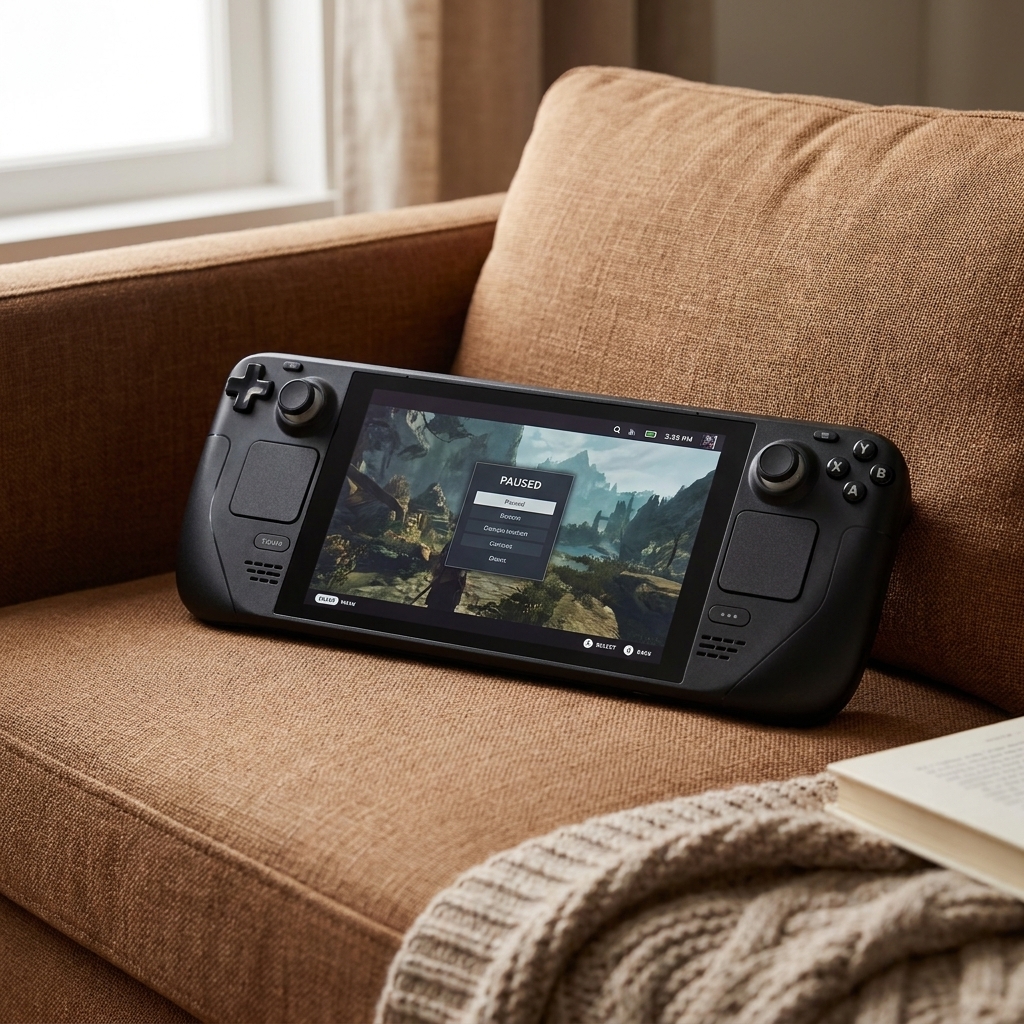
The Steam Deck feels like a handheld designed by people who really, truly want you to play games. It is built around Steam, uses a console-like interface by default, and tends to be the calmer choice for “pick up and play” habits. It is also famous for strong sleep and resume behavior, which sounds small until you have tried to game in tiny pockets of time.
ROG Ally
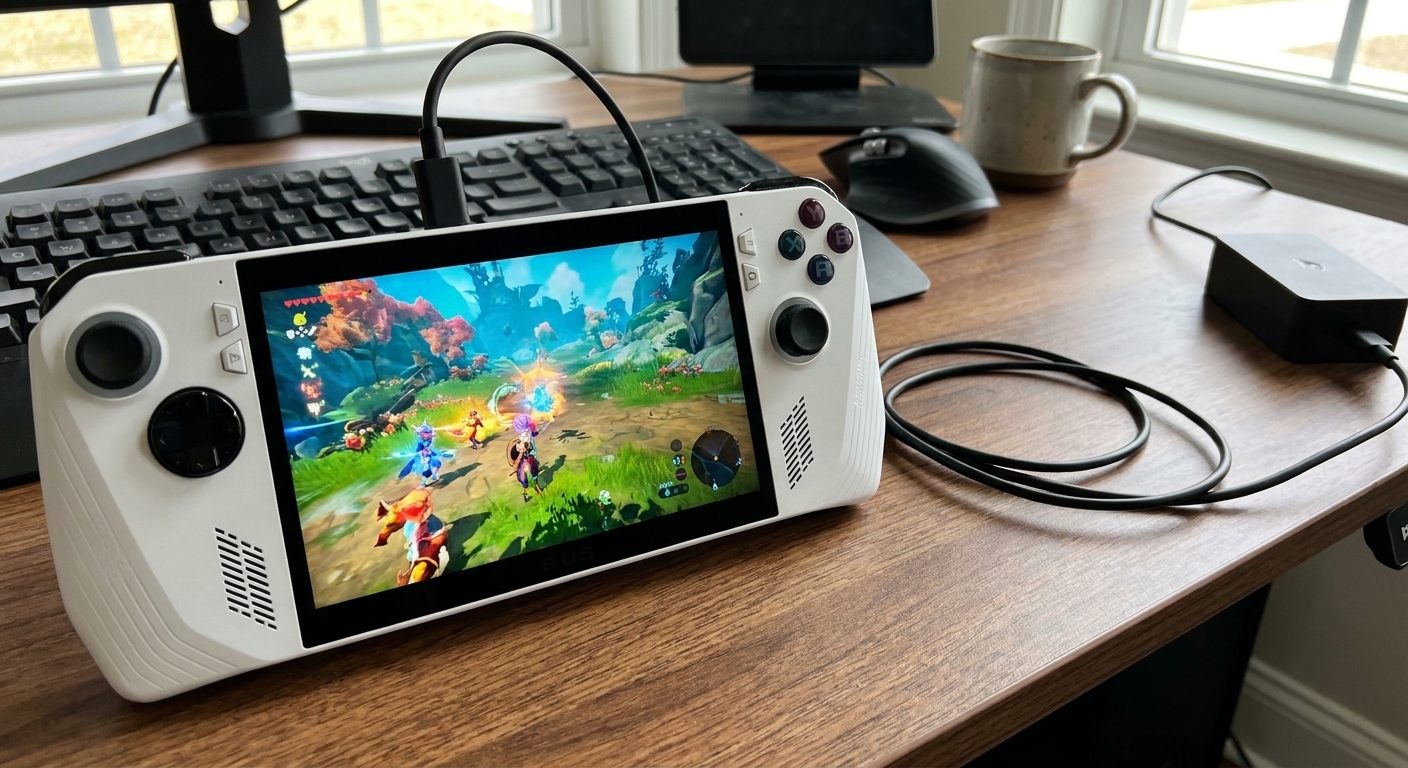
The ROG Ally feels like a Windows gaming PC that happens to be handheld. That is a compliment and a warning. You get broad compatibility, easy access to multiple game stores, and higher peak performance in the right conditions (especially on Z1 Extreme class devices and newer models, and especially when you feed them more power). You also inherit Windows quirks, pop-ups, and the occasional “why is the keyboard not showing up” moment.
Battery life
Battery life is where expectations go to get gently humbled. These devices are doing PC-class work in a small shell, so your settings matter a lot. Exact hours vary wildly by game, brightness, frame caps, and power profile, so treat the ranges below as “ballpark reality,” not promises.
Steam Deck battery life
In general, the Steam Deck tends to be the more predictable battery companion, especially if you are willing to cap frame rates and use the built-in performance tools. If you play indie games, older titles, or anything that runs well at 40 to 60 fps, you can often get a satisfying session without hovering near an outlet.
- Lighter games (2D indies, older titles): Often 4 to 8 hours depending on brightness and caps.
- Midrange 3D games: Often 2.5 to 5 hours with sensible settings.
- Heavier AAA games: Often 1.5 to 3 hours, with lower settings or frame targets making a meaningful difference.
- Big win: Sleep and resume is excellent, so you waste less power on awkward restarts.
ROG Ally battery life
The Ally can absolutely drink battery when running at higher power profiles. The trade is that those power profiles are what let it flex performance. If you want top-end fps in demanding games, you will typically want to be plugged in or carrying a power bank that means business.
- Lighter games (quiet modes, low TDP): Often 3 to 7 hours, depending on the model and how aggressive you are with settings.
- Midrange 3D games: Often 2 to 4.5 hours, with power profiles making the difference between “fine” and “oh no.”
- Heavier AAA games at higher wattage: Often 1 to 2.5 hours, sometimes less if you really let it run.
- Big win: When you plug in and bump the power profile, the performance uplift can feel dramatic.
My practical takeaway: If you dream of playing on commutes, in waiting rooms, or anywhere outlets are mythical creatures, Steam Deck usually feels less stressful. If most of your handheld time is at home near a charger, the Ally’s battery becomes less of a deciding factor.
Performance
Performance is not only “Which one is faster?” It is “Which one is fast in the way you need?” Also, handheld performance is heavily tied to wattage. These devices can feel like different machines depending on whether you are running a low-power handheld profile or a plugged-in turbo mode.
Steam Deck performance
The Steam Deck is optimized around a specific hardware target, and that consistency helps developers and the community dial in settings that just work. Many games play beautifully at 30 to 40 fps with tuned settings, and the experience is often smoother than raw numbers suggest because the whole system is built for this one job.
- Strengths: Well-optimized ecosystem, great frame pacing when tuned, strong community presets.
- Best for: Indies, older AAA titles, lots of Steam library gaming, and players who do not mind “good enough” settings for portability.
- Reality check: Newer demanding games may require lower settings, lower resolutions, or lower frame targets.
ROG Ally performance
The ROG Ally’s big selling point is that it can hit higher performance ceilings, particularly on models like the Z1 Extreme class and Ally X, and particularly when plugged in or allowed to run at higher TDP. If you enjoy chasing higher frame rates or want more headroom for newer releases, the Ally is often the more muscular option.
- Strengths: Higher peak performance at higher wattage, excellent when docked or plugged in, broad game and launcher compatibility.
- Best for: Players who want to run newer titles at higher settings, use multiple storefronts, or treat the handheld like a tiny gaming laptop.
- Reality check: Higher performance modes typically cost battery and may generate more heat and fan noise.
User experience
OS and setup
Steam Deck: The default experience is SteamOS with a console-style interface that is easy to navigate with controls. You can go into Desktop Mode when you need “real computer” tasks, but you do not have to live there.
ROG Ally: Windows gives you freedom and compatibility, but also the full Windows lifestyle. You will sometimes touch tiny menus, manage updates, and hop between apps. ASUS’s software helps, but it is still Windows underneath.
Stores, launchers, and anti-cheat
Steam Deck: Steam is the smoothest path. Other launchers are possible, but may require extra steps and occasional troubleshooting. Also, a key caveat: some online multiplayer games with certain anti-cheat systems may not work reliably on SteamOS (Linux/Proton), even if everything else looks fine on paper.
ROG Ally: Steam, Xbox app, Epic, GOG, Battle.net, and more are straightforward because it is Windows. If your library is spread across stores, the Ally often feels simpler. Anti-cheat compatibility is typically less of a question mark here, since you are running Windows natively.
Controls and comfort
This part is personal, like choosing a favorite mug. The Steam Deck is larger and can feel more ergonomic for longer sessions, especially if you like the trackpads for mouse-heavy games. The Ally is generally more compact, with a different grip and control layout that some folks prefer for travel.
If you can, try holding both. Five minutes in a store can save you from buying the gaming equivalent of shoes that looked cute but betrayed you on mile one.
Sleep and quick sessions
Steam Deck: Generally excellent. This is one of the Deck’s most “console-like” strengths.
ROG Ally: Windows sleep and hibernate behaviors can be less consistent, and you may need to build a routine that works for you. Some players do fine. Others end up doing more full closes and relaunches.
Screen and sound
Specs vary by model and version, so it helps to think in preferences rather than absolutes.
- If you love deep blacks and cozy night gaming: Steam Deck OLED models are famous for making darker games look rich and punchy.
- If you love smoother motion in messy frame rate moments: The Ally line is often praised for its VRR (Variable Refresh Rate) display, which can make gameplay feel more fluid when fps bounces around.
Both can look fantastic. Your eyes will notice the difference more than a benchmark will.
Docked play
Both devices can be docked to a monitor for a more traditional setup. The question is what you want when you get there.
Steam Deck docked
Great for couch gaming, especially if you mostly live in Steam. Desktop Mode can handle browsing, light productivity, and hobby tinkering. Think of it as “console first, computer second.”
ROG Ally docked
Because it is Windows, docking can feel more like using a small gaming PC. If you want to plug into a monitor, connect peripherals, and bounce between games and apps, the Ally often feels natural.

Settings cheat codes
If you want the fastest path to “this feels good,” these are the two most useful levers.
Steam Deck
- Cap your frame rate (try 40 fps first) and match the refresh rate when possible. It often looks smoother than you expect and saves a lot of battery.
- Use the performance overlay to watch wattage and frame pacing while you tweak settings. Two minutes of tuning can buy you an extra hour.
ROG Ally
- Use power profiles intentionally: low power for indies, mid for most 3D games, turbo for the big stuff (ideally plugged in).
- Let VRR do its job: you do not always need to brute-force a locked 60. A stable-feeling 45 to 60 with VRR can be the sweet spot.
Which one to buy
Choose Steam Deck if you want:
- A more console-like experience with fewer Windows chores
- Excellent sleep and resume for short gaming bursts
- Smoother “Steam-first” living, with strong community settings and support
- Battery life that usually feels easier to manage with built-in tools
- Trackpads for strategy games, point-and-click adventures, and mousey genres
Choose ROG Ally if you want:
- Windows compatibility for multiple launchers and game services
- Higher peak performance (especially on Z1 Extreme class models and Ally X, and when plugged in)
- A handheld that behaves like a small gaming laptop
- More flexibility for non-Steam libraries without extra workarounds
- A VRR screen that can make variable frame rates feel smoother
If your hobby style is “I like to tinker and I do not mind a few speed bumps,” the Ally can be a playground. If your hobby style is “I want my free time to feel like free time,” the Steam Deck is often the softer landing.
Common questions
Can Steam Deck play non-Steam games?
Yes, it can. Some games and launchers are easy, others take a bit of setup. If your library is mostly Steam, you will be happiest fastest. If your library is scattered across several launchers, expect more tinkering. And for some online multiplayer games, anti-cheat support can be the deciding factor.
Is the ROG Ally basically a Switch for PC games?
In spirit, yes. In practice, it is closer to a small Windows PC with controllers attached. That means huge flexibility and also occasional PC-style maintenance.
Which one is better for indie games?
Both are great, but the Steam Deck is especially delightful for indies because many run efficiently, look wonderful, and pair nicely with the Deck’s quick suspend and resume.
Which one is better for big new AAA releases?
If you want the best chance at higher settings and frame rates, the ROG Ally often has the edge, especially when plugged in and allowed to run at higher wattage. The Steam Deck can still play many AAA games, just with more careful settings and sometimes lower targets.
Do I need to be “good with computers” for either one?
You do not need to be an expert for either, but your patience threshold matters. The Steam Deck tends to ask less of you day to day. The Ally rewards comfort with Windows and a willingness to troubleshoot now and then.
My closing nudge
Pick the handheld that matches how you actually relax.
If your dream is a cozy, low-friction device that makes your Steam library feel like a handheld console, the Steam Deck is a lovely choice. If your dream is maximum compatibility across stores, stronger peak performance when you want it, and you do not mind a little PC housekeeping, the ROG Ally can be a surprisingly powerful sidekick.
And whichever you choose, please give yourself permission to start as a beginner. Your first week will involve settings, updates, and at least one “wait, where did the cursor go?” moment. That is not failure. That is just the hobby warming up.