
If you have ever stared at a wall of vinyl rolls and thought, “I would like to turn this into something adorable and mildly unnecessary,” welcome. Electronic cutting machines are basically tiny, obedient robots for crafters, and two of the biggest names you will hear are the Cricut Maker 3 and the Silhouette Cameo 4.
They are both excellent. They are also different in ways that matter once you get past the shiny unboxing moment. Let’s make that choice with specifics: software, cutting power, material compatibility, print then cut, and the little day-to-day details that make you either craft joyfully or mutter at your desk.
At a glance
- Pick Cricut Maker 3 if you want the most guided, beginner-friendly experience, love ready-to-make projects, or you value a smooth app-first workflow.
- Pick Silhouette Cameo 4 if you want deeper design control, prefer desktop software, plan to do lots of print-and-cut stickers, or you like tinkering and fine-tuning.
Now let’s get into the details that actually change your day.
Key specs
Some readers want vibes. Some want numbers. Here are the headline specs people use to compare.
- Max cutting force (advertised): Cricut Maker 3 is commonly advertised up to 4,000g; Silhouette Cameo 4 is commonly advertised up to 5,000g. Because specs can vary by region, tool, and how brands report force, treat these as manufacturer marketing numbers and double-check current listings on the official product pages if the “max force” is your deciding factor.
- Max cut width (most common workflow): both are typically used as 12-inch (30.5 cm) class cutters for standard mats and materials.
- Long, matless cuts: Cricut Maker 3 supports long matless cuts with Smart Materials (within Cricut’s supported sizes). Cameo 4 can also cut longer runs by feeding vinyl from a roll, but this is a different workflow: you will need correct pinch roller placement and, for best results, a stable roll setup (many crafters use a roll feeder or roll support setup). For precision work, a mat can still be the calmer, less dramatic option.
Real-life translation: either machine will cut vinyl and cardstock all day. The specs start to matter when you are cutting thicker materials, running long projects, or trying to keep tiny details clean without babysitting.
Design software
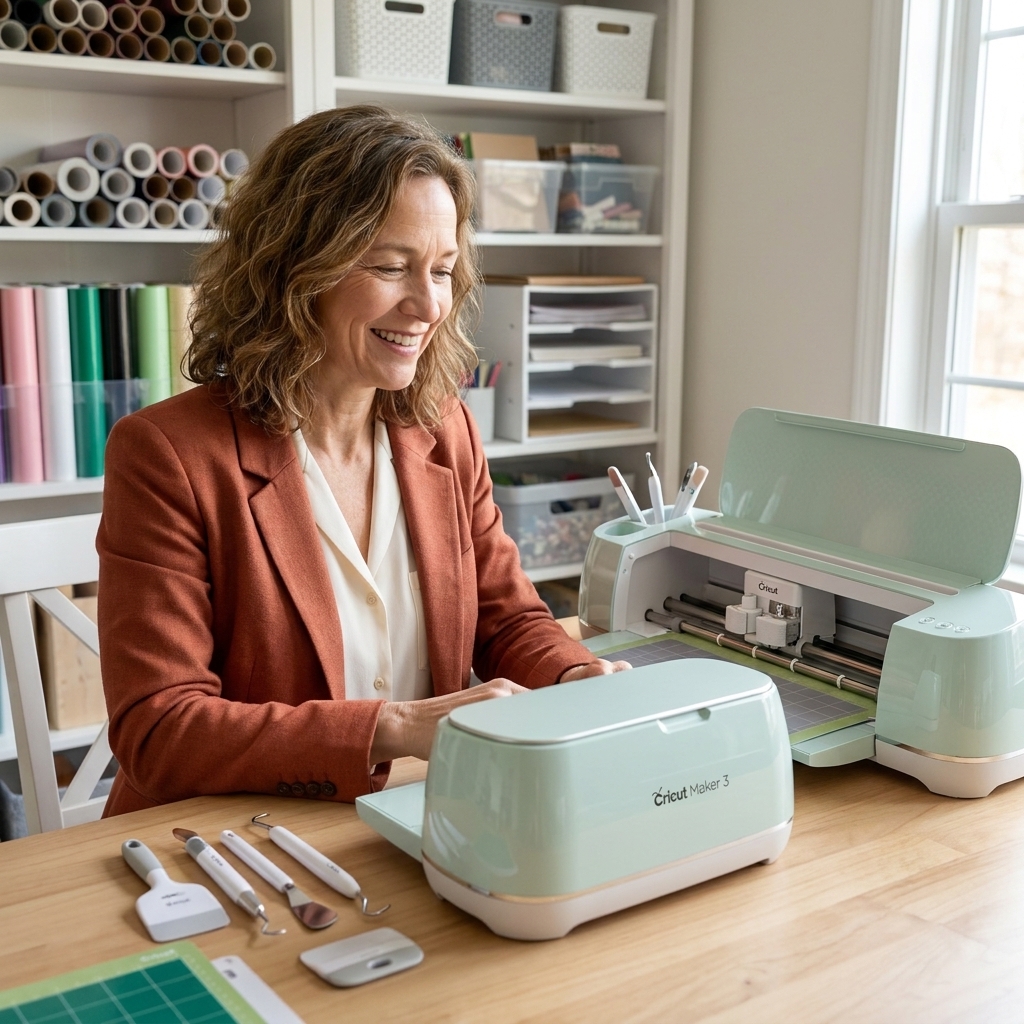
Cricut Design Space
Design Space is the “I just want to make the thing” option. It is friendly, visual, and tightly connected to Cricut’s library of projects, images, and fonts. If you like being walked through steps, this is a big comfort.
- Strengths: simple interface, lots of premade projects, easy device setup, solid for basic editing and quick cuts.
- Watch-outs: it can feel limiting if you want advanced vector editing. Some features and content are tied to Cricut Access, their subscription.
- Workflow note: Design Space is account-based and often cloud-connected. Offline use exists, but what you can do offline can vary by platform and updates. If offline reliability is a must-have, confirm current offline capabilities for your device before committing.
Real-life example: if you want to make 40 pantry labels tonight, you can pick a font, type, cut, and be done without opening a separate design program.
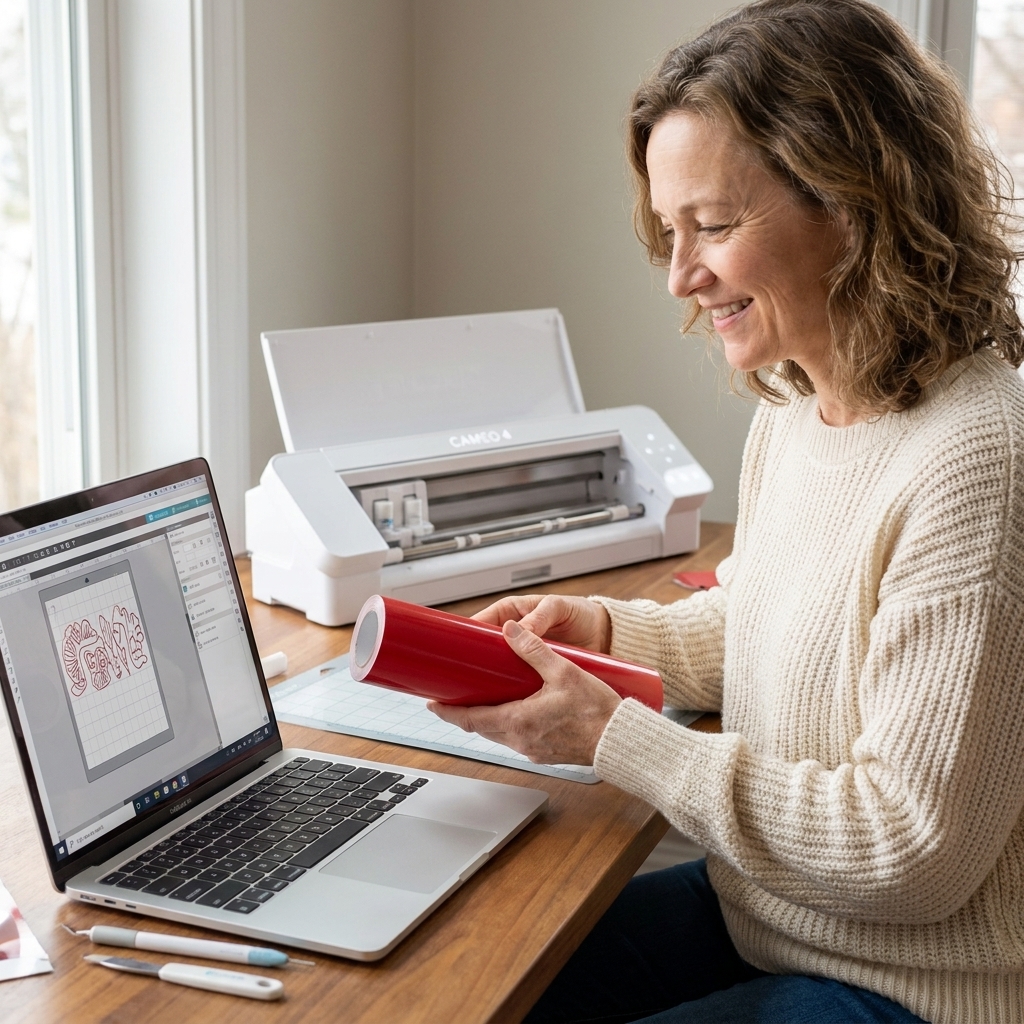
Silhouette Studio
Silhouette Studio is the “I would like to adjust this node by one pixel” option. The base version is capable, and upgrades unlock more advanced features.
- Strengths: more robust design tools, strong control over cut settings, great for people who like designing from scratch.
- Watch-outs: learning curve is steeper. The interface feels more like traditional design software than a guided crafting app.
- SVG note (important): SVG import typically requires a paid software upgrade. Since Silhouette’s edition names and bundles can change, it is safest to think “SVG import is not usually in the free edition” and verify the current edition comparison chart before purchasing upgrades.
- Workflow note: Silhouette Studio is desktop-first and generally feels more offline-friendly for designing since your files live on your computer. Activation and updates can still require internet at times, so check current requirements if you craft in a no-Wi-Fi zone.
Real-life example: if you sell decals and want to fine-tune cut lines, offsets, and weeding borders exactly how you like them, Silhouette can feel like your happy place.
My librarian-style summary: Cricut is easier to start. Silhouette is easier to grow into if you enjoy design control.
Cutting power
Cutting force sounds dramatic, but it is basically: how confidently can the machine cut thicker or tougher materials without you hovering like an anxious stage parent. (Also: tools matter. A strong machine with the wrong blade is still a chaos gremlin.)
Cricut Maker 3
The Maker line is known for handling a wide range of materials, especially when paired with the right tool. If you want to go beyond vinyl and cardstock into specialty materials, it is a strong pick.
- Advertised max force: commonly listed up to 4,000g, depending on the source and how it is reported.
- Great for: vinyl, heat transfer vinyl (HTV), cardstock, faux leather, fabric, and thin craft woods (like basswood) when using the correct tools and multiple passes.
- Tool ecosystem: Cricut’s Adaptive Tool System makes it feel prompt-led. Design Space tells you what tool to load, and the machine is built to handle specialty tools like the rotary blade (fabric) and knife blade (thicker materials).
Real-life example: if you want to cut fabric pieces for a quilt without tracing by hand, the rotary blade is one of Cricut’s biggest “oh, that’s nice” moments.
Silhouette Cameo 4
The Cameo 4 has plenty of muscle for its class, and it is especially loved by vinyl people and sticker makers. With the right blade and settings, it can also handle thicker materials, but it tends to reward careful dialing-in.
- Advertised max force: commonly listed up to 5,000g, depending on the source and how it is reported.
- Great for: vinyl, HTV, cardstock, sticker paper, and a wide variety of craft materials once you have your settings tuned.
- What “tweaking” usually means: adjusting blade depth (or blade type), force, speed, passes, and overcut. This is delightful if you enjoy control and annoying if you want a machine that reads your mind.
- Tool ecosystem: Silhouette’s blade options (like the AutoBlade and other specialty blades depending on your setup) pair with Studio’s detailed cut setting control. It feels more like a workshop: you can get it exactly right, but you are the one turning the knobs.
How to decide: if you want consistent results with minimal tweaking, Cricut tends to feel more set it and go. If you like testing settings and optimizing, Silhouette can feel wonderfully empowering.
Materials
Both machines cover the classic hobby staples: vinyl decals, iron-on shirts, paper crafts, labels, and party decor. The difference shows up when you start branching out and when you care about convenience.
Cricut Maker 3 highlights
- Excellent breadth of supported materials and tools, including specialty blades for fabric and thicker materials.
- Smart Materials let you cut certain materials without a mat (within Cricut’s supported list and size limits), which can feel magical when you are making long wall quotes, repeated labels, or batches of car decals.
- Wood reality check: yes, it can cut thin woods, but expect multiple passes, strong mats, and occasional fuss. This is not a laser, and it will not bulldoze through thick wood like it is butter.
Silhouette Cameo 4 highlights
- Versatile with third-party materials, and many hobbyists love that it plays nicely with lots of brands once you know your settings.
- Matless vinyl (practical option): the Cameo 4 can feed vinyl from a roll for longer cuts, but it works best with proper pinch roller placement and a stable roll setup (many users add a roll feeder or roll support). It is not the same branded, preset-driven system as Smart Materials, and it can be more sensitive to curl and alignment. For tiny details, a mat can still be your best friend.
A gentle reality check: the “can it cut it?” question is often less about the machine and more about using the right blade, a fresh mat, and realistic expectations. Even the fanciest cutter does not enjoy gummy glitter cardstock.
Print then cut
If your dream is sticker sheets, planner decals, product labels, or anything that involves printing a design and having the machine cut around it, pay close attention here.
Cricut Maker 3
Cricut’s Print Then Cut workflow is straightforward, especially for beginners. It can be sensitive to calibration, lighting, and paper finish. That is particularly true with glossy or highly reflective materials, where the sensor can struggle.
- Best for: casual sticker makers, labels, occasional print-and-cut projects.
- Helpful habit: run calibration when you switch printers or notice drift.
- Glare tip (unofficial): some users reduce glare by placing matte tape around the registration marks or along the page edges to cut shine, without covering any registration marks. This is not an official fix, so test carefully and know it may affect support or warranty claims.
Real-life example: if you are making teacher appreciation stickers or a few product labels for a small batch, Cricut is often the fastest path from idea to cut.
Silhouette Cameo 4
Silhouette has a strong reputation in the sticker-making community because the software control and cut customization can be very precise. That said, both ecosystems can be excellent once calibrated, and your printer, paper, and room lighting have a lot to say in the final outcome.
- Best for: frequent sticker makers and people who want lots of control over cut lines, offsets, and kiss-cut versus die-cut settings.
- Helpful habit: get comfortable tweaking registration marks and cut settings for different sticker papers.
Real-life example: if you are running weekly sticker restocks and you need consistent cut lines across multiple paper types, Silhouette’s control can feel like a superpower.
Daily use
These machines live in real homes, not laboratories. So here is the Tuesday-night reality.
- Speed: both can cut quickly, especially for simpler shapes. Intricate designs slow any machine down because precision takes time.
- Noise: expect some noise from both. If you craft while others sleep, plan for a closed door or earlier crafting hours.
- Footprint: measure your space. You need room not only for the machine but also for feeding mats or longer materials through the front and back.
- Connectivity and devices: both machines can connect via USB, and many setups use Bluetooth. The bigger day-to-day difference is workflow: Cricut leans into mobile and app-style crafting, while Silhouette leans into desktop design. If you want to do most of your work from a phone or tablet, Cricut often feels simpler. If you want a full desktop design environment, Silhouette often feels better.
- Time to first project: Cricut tends to be faster for a true beginner because the app nudges you along. Silhouette can take longer on day one, but it pays you back if you enjoy learning your tools.

Costs
The machine price is just the opening chapter. The ongoing costs come from tools, blades, mats, and how you like to design.
Cricut costs
- Optional subscription: Cricut Access provides a large library of images, fonts, and projects. You can use Design Space without it, but many people subscribe for convenience.
- Tools and materials: Cricut-branded supplies are widely available and easy to match with presets, though you can also use third-party materials with some testing.
Silhouette costs
- Software upgrades: Silhouette Studio has paid upgrade tiers for advanced features (often including SVG import). This is frequently a one-time cost rather than a monthly subscription, depending on what you choose.
- Supplies: third-party materials are commonly used, which can save money if you are willing to test settings.
Budget-friendly tip from a serial hobbyist: set aside a small “consumables fund” for blades and mats. Fresh blades solve more problems than we want to admit.
Common issues
Because I love you, here are the usual craft-table complaints and what helps.
- My cuts are not clean: replace or reseat the blade, clean out debris, slow the cut, and do a small test cut before you sacrifice a full sheet of vinyl.
- Stuff is not sticking to the mat: your mat is either dirty or tired. Clean it gently, or retire it with honor and buy a new one.
- Print then cut is drifting: run calibration, check your printer scaling settings, and control lighting (especially with glossy paper).
- Weeding is a nightmare: add a weeding box, reduce tiny details, or choose a slightly thicker font. Your sanity is part of the supply list.
Who should buy what
Choose Cricut Maker 3 if you…
- want the most beginner-friendly, guided setup
- love ready-to-make projects and a big built-in library
- prefer an app-like experience with fewer technical choices
- want to explore lots of materials with clear prompts for tools and settings
Choose Silhouette Cameo 4 if you…
- enjoy designing and want more control over your files
- plan to make lots of stickers or detailed print-and-cut projects
- like desktop software and the ability to fine-tune settings
- do not mind a learning curve in exchange for flexibility
If you are the kind of person who color-codes your seed packets, Silhouette might make your heart happy. If you want to craft without feeling like you need to earn a software certification first, Cricut is a very cozy on-ramp.
FAQ
Do I need a subscription?
Cricut: no, but a subscription unlocks a lot of the library and convenience features many users enjoy. Silhouette: no subscription is required, but you may choose a paid software upgrade depending on your design needs.
Can both cut vinyl and HTV?
Yes. Both are great at vinyl and HTV. Your results will depend heavily on blade sharpness, cut settings, and using a clean mat.
Which is better for beginners?
Most beginners feel comfortable faster with Cricut Maker 3 because the workflow is more guided. That said, beginners who like learning software and control can absolutely thrive with the Cameo 4.
Do I have to use branded materials?
No. Many crafters use third-party vinyl, sticker paper, and cardstock with both machines. You may need to test settings to get clean cuts.
Final nudge
If you want your cutting machine to feel like a friendly helper who hands you the right tool and says, “I got you,” go Cricut Maker 3. If you want your cutting machine to feel like a creative workshop where you can adjust every little detail and build your skills over time, go Silhouette Cameo 4.
Either way, I give you full hobby permission to start simple. Make one sticker sheet. Cut one name label. Try one slightly crooked vinyl decal and love it anyway. That is how all the good hobbies begin.